




Customizer Guide
We want your custom engraved product to turn out exactly as you imagine. To ensure the highest quality results, please review our step-by-step guides below before using our live interactive customizer
Desktop Step-by-Step
Choosing your product
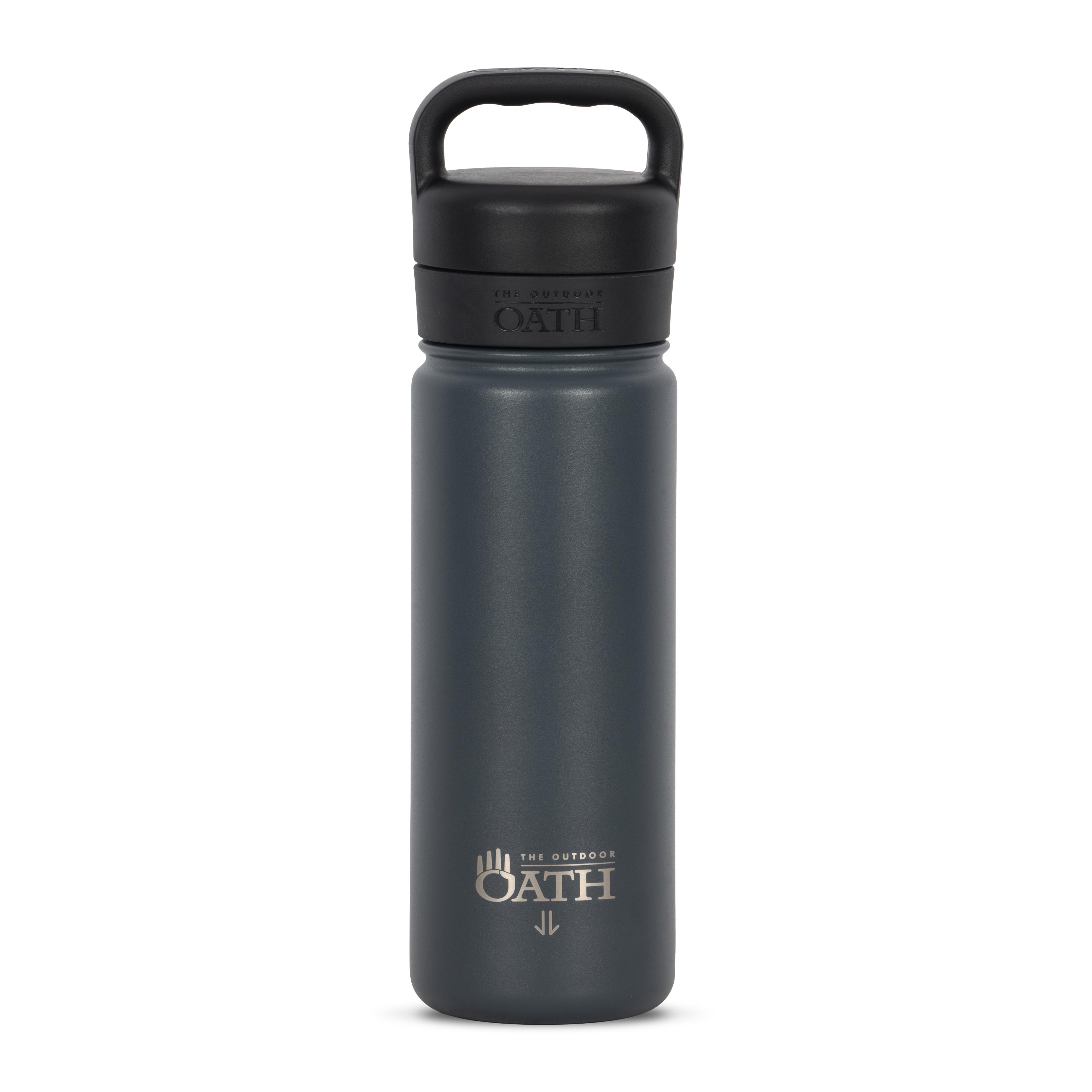
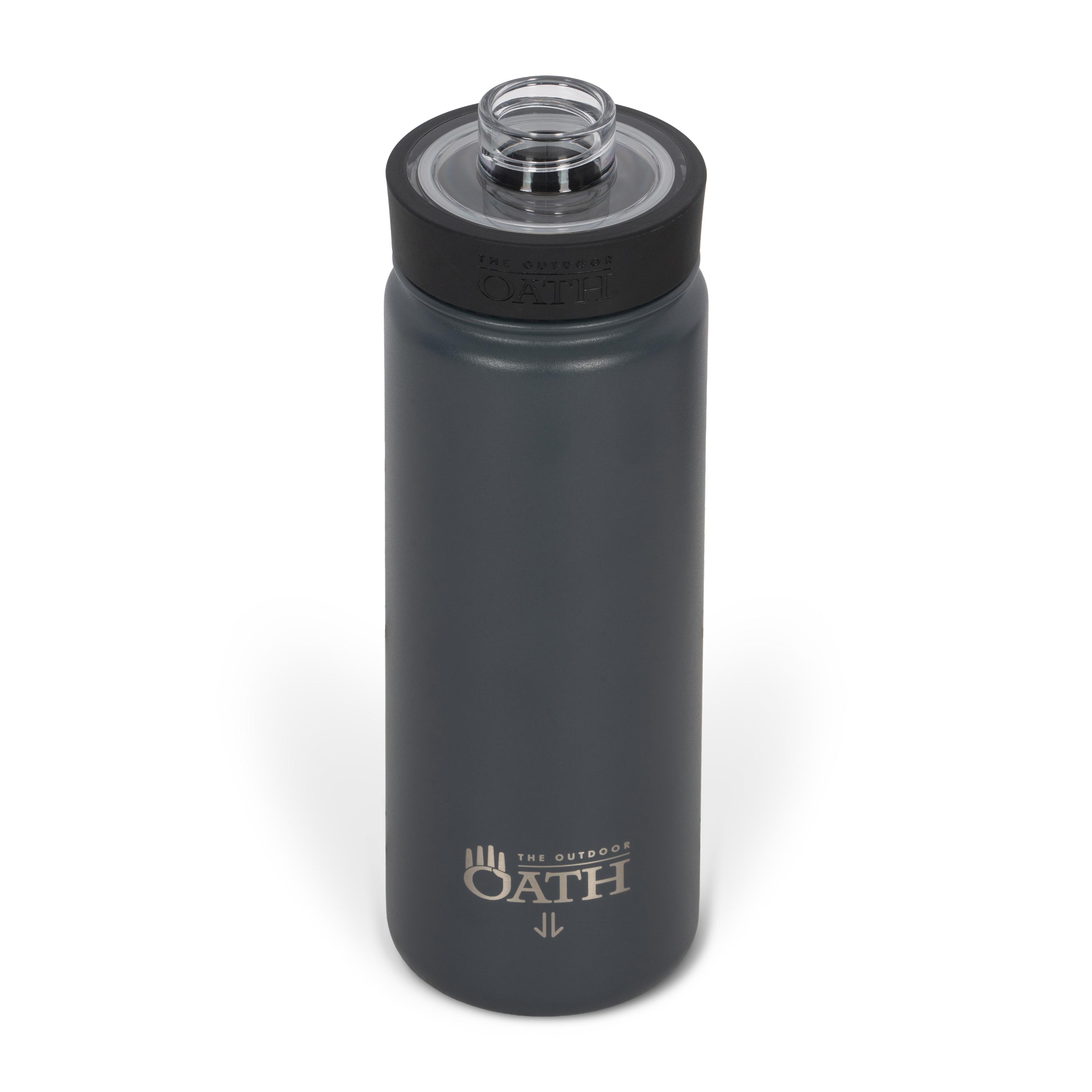
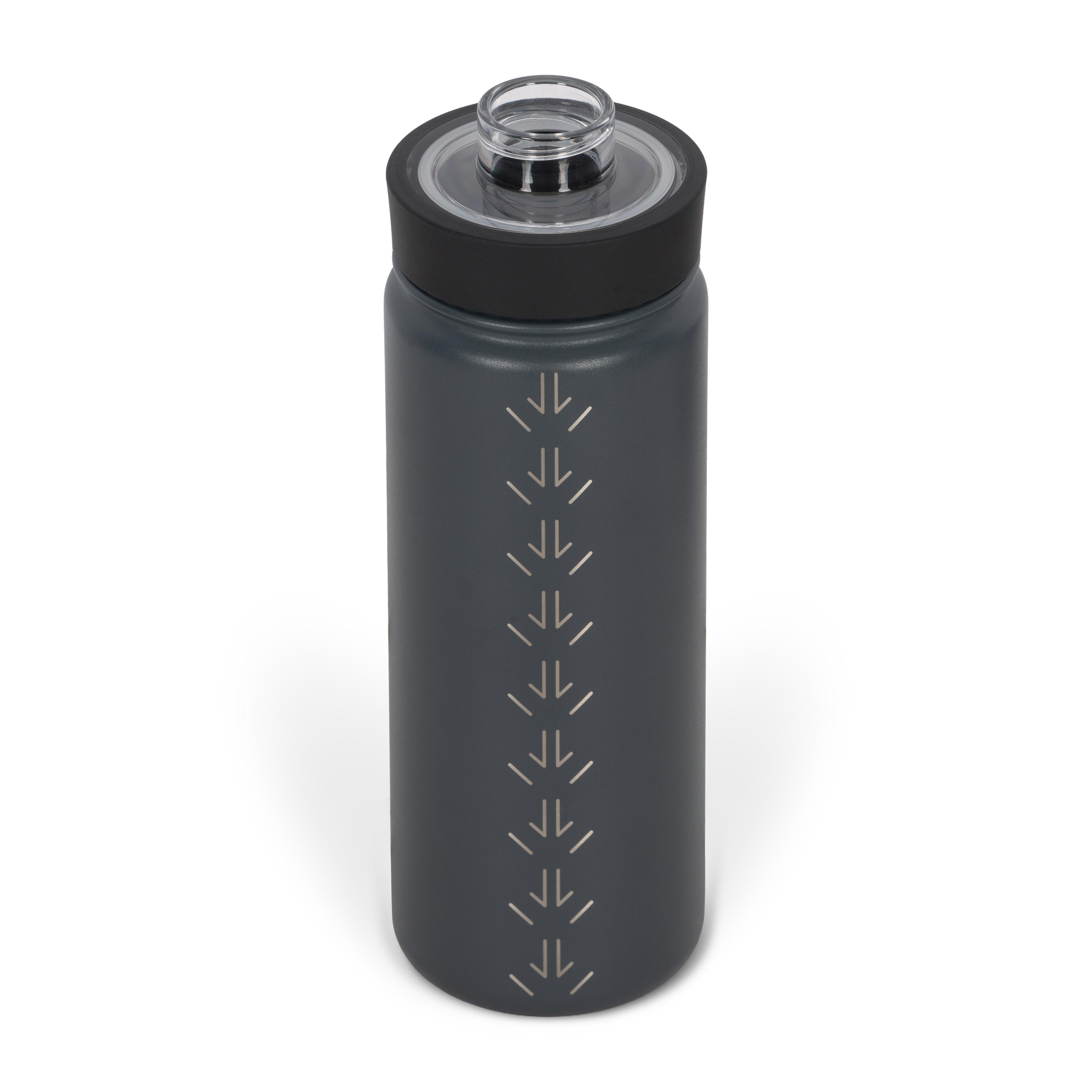
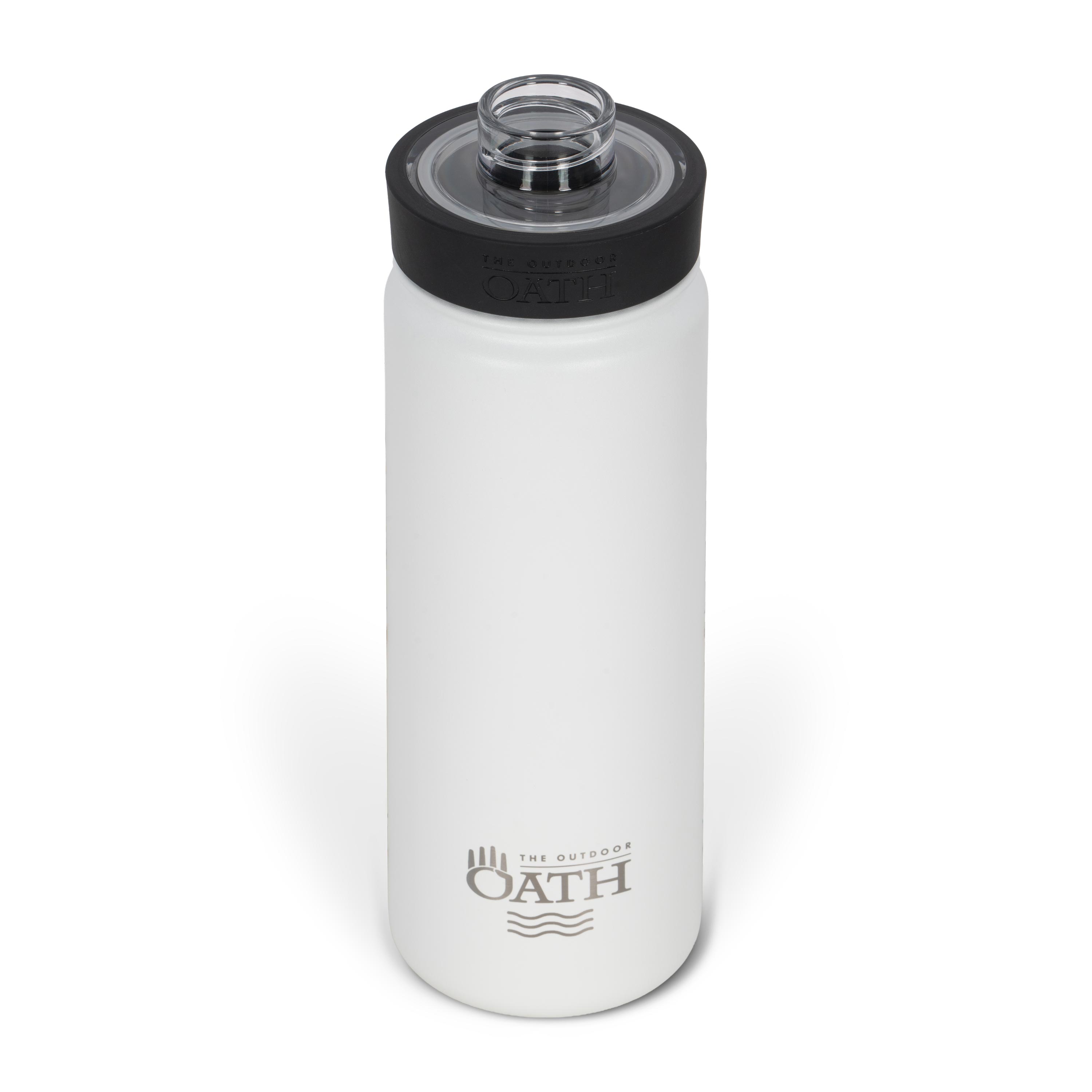
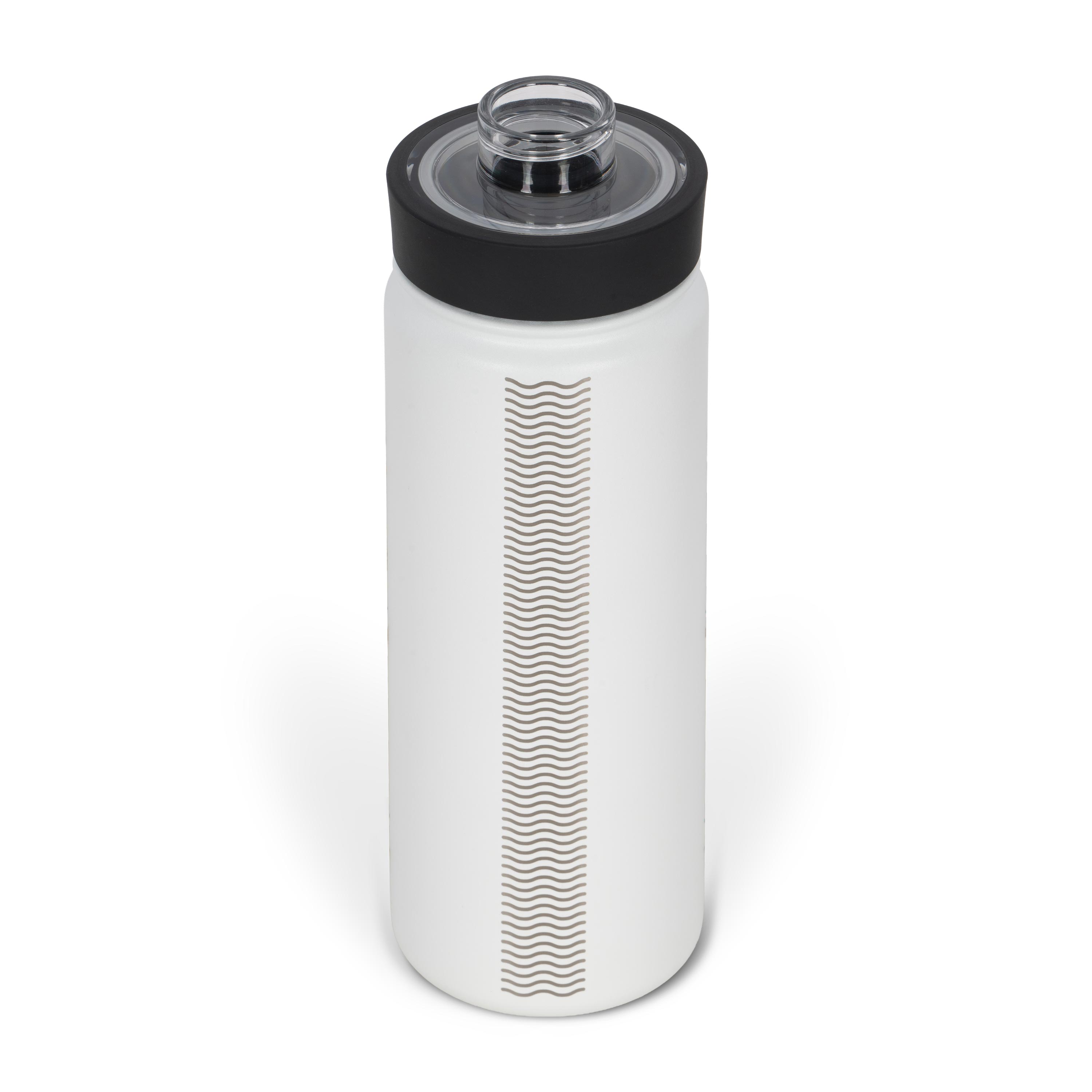
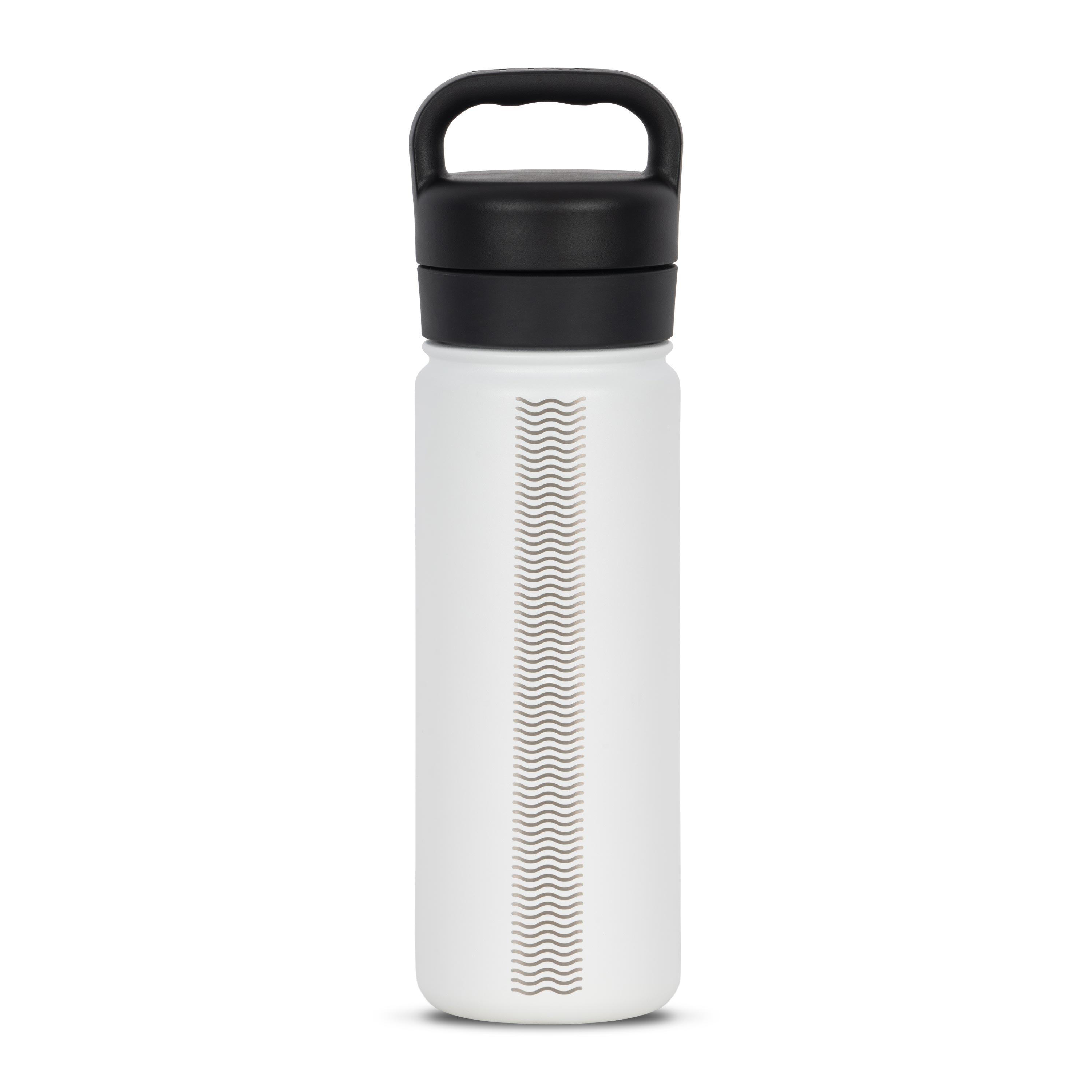
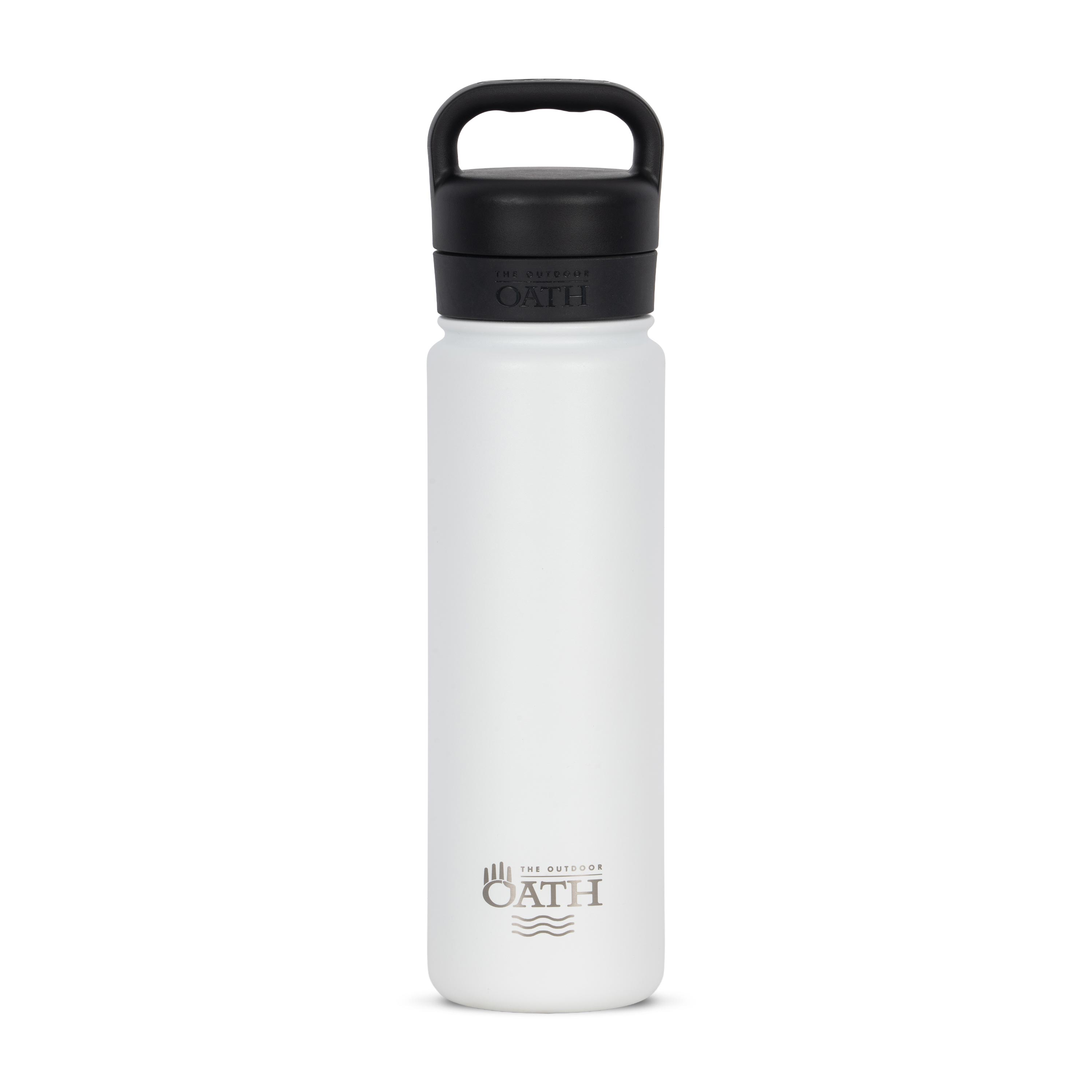
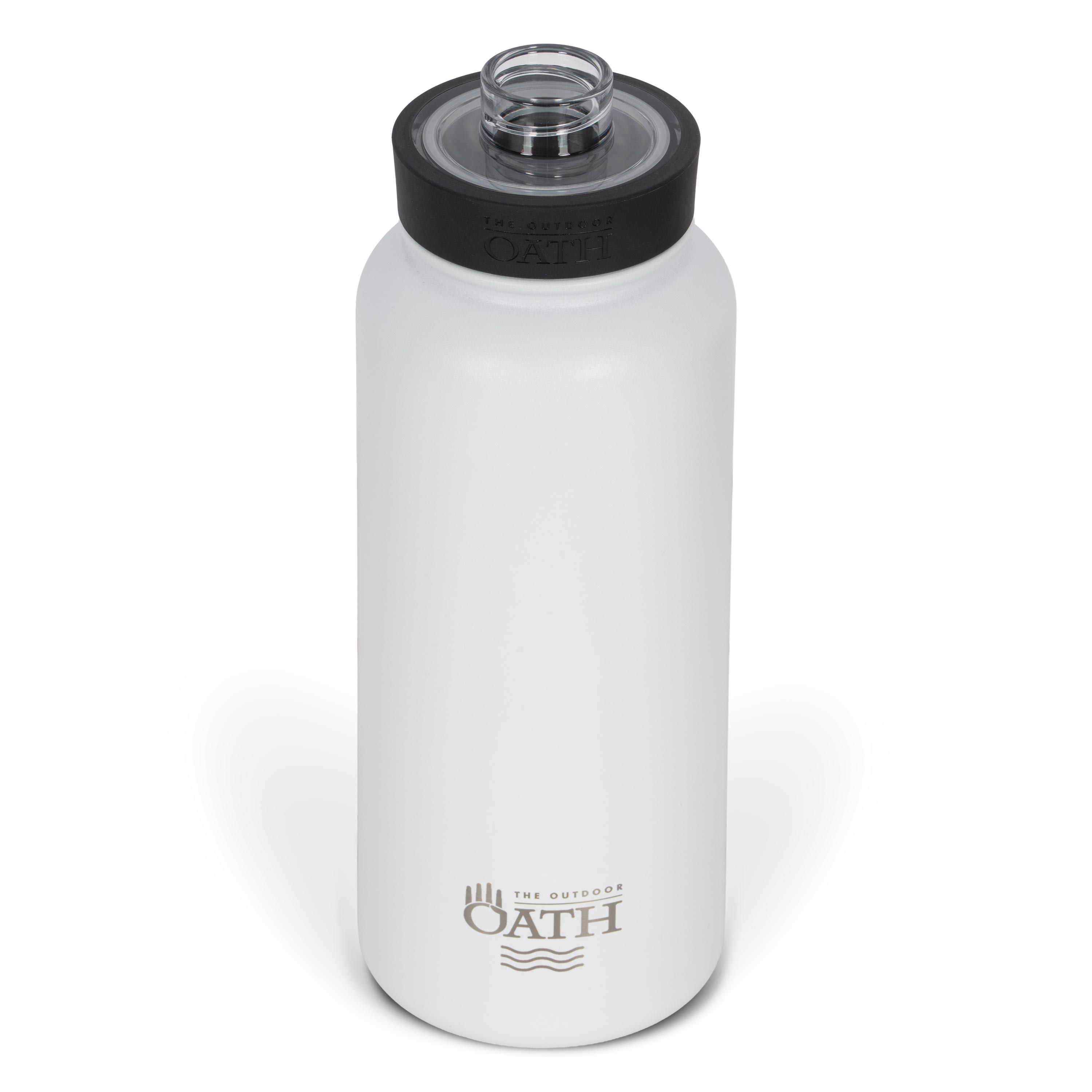
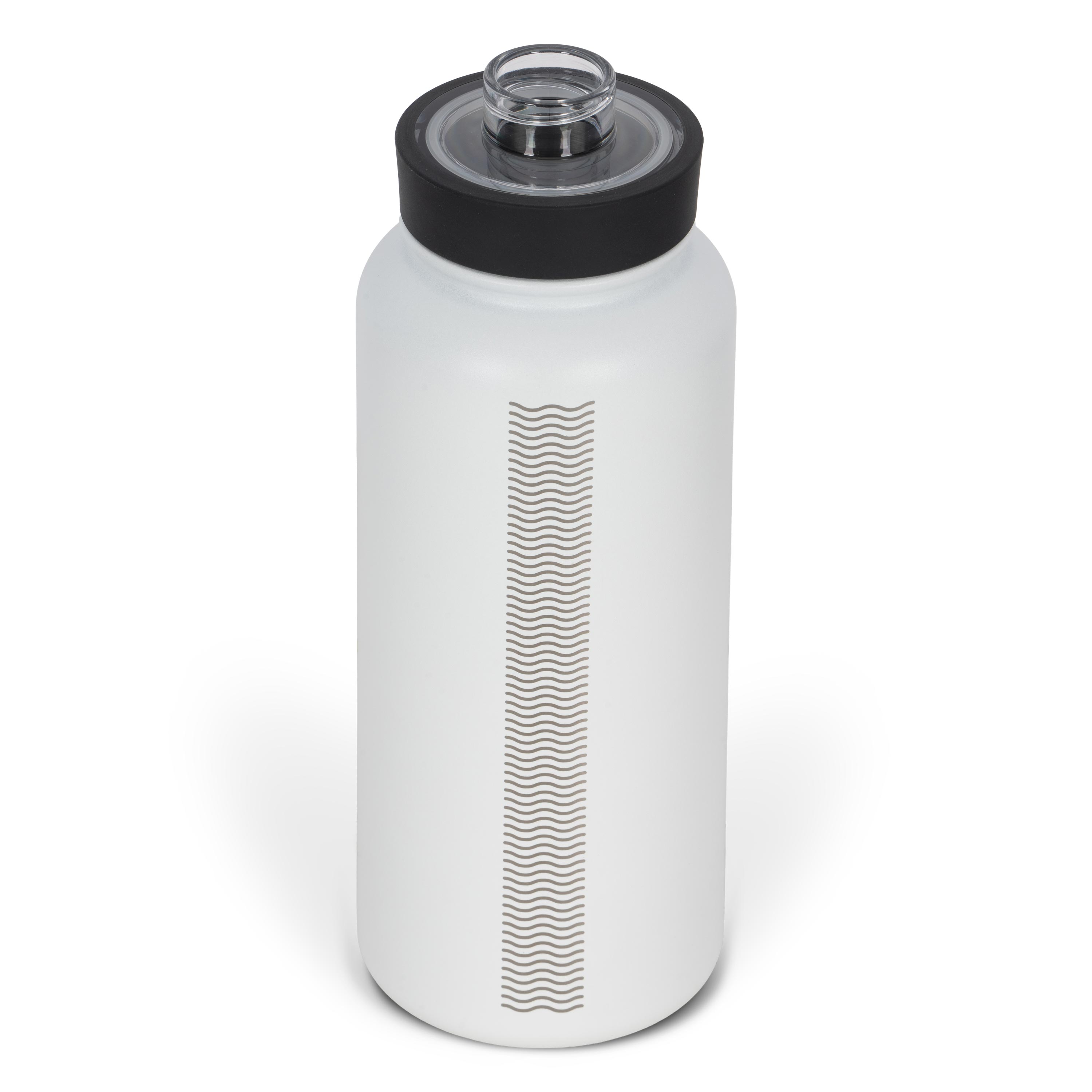
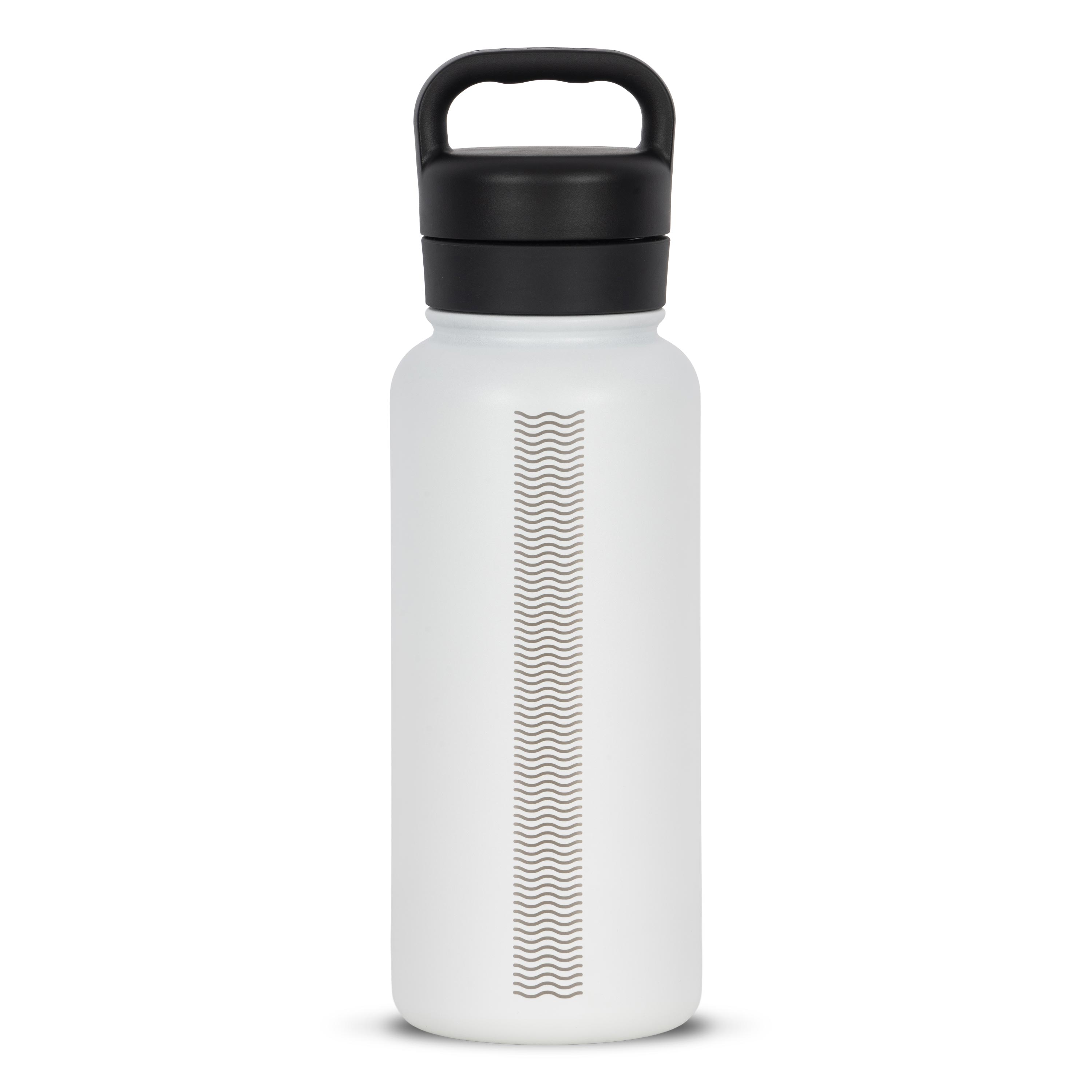
Choose your product variation from the product page (eg: 530ml/18oz White Haven Stainless Steel Bottle) then click "CUSTOMIZE" button under "Add to Cart". This will then open the Live Customizer.
Choosing and editing an image
Step 1: Choose an Image Category first.
Step 2: Now choose which image you would like to use.
Step 3: Once you have chosen your image, you can now edit the image within the design.
There are 2 modes in which you can edit your image.
Mode 1 - Click and Drag
Click on image, the four corners and rotate icon should now be visible.
To enlarge or reduce size of image, click and drag one corner, out to enlarge, in to reduce.
To move image, click and drag when direction icon is visible
To rotate image, click and drag on rotate icon.
NOTE: Always remember to keep image within bounding box and also try not to make image to small as if image too small some elements may not engrave correctly.
Mode 2 - Icons
Use the Icons underneath the live preview to edit your image.
To toggle between editing Image and Text, click the Icon with squares and arrows.
To reduce the size of the image, click the minus magnifying glass
To enlarge the size of the image click the plus magnifying glass
To rotate image click the circle arrow icon
To move image position up, down, left or right, click the corresponding arrow icons.
NOTE: Always remember to keep image within bounding box and also try not to make image to small as if image too small some elements may not engrave correctly.
Adding and editing text
Step 1: Click inside the text box under the title "Text Line 1"
Step 2: Type your desired text inside the text box.
Please Note: Any customized order that contains text that is deemed offensive by The Outdoor Oath or subject to copyright protection will be cancelled and refunded within 5-7 days
Step 3: Choose a font, click on desired font box.
Once you have entered your text and chosen your font, you can now edit the size, position and rotation of your text
There are 2 modes in which you can edit your text
Mode 1 - Click and Drag
Click on text, the four corners and rotate icon should now be visible.
To enlarge or reduce size of text, click and drag one corner, out to enlarge, in to reduce.
To move text, click and drag when direction icon is visible
To rotate text, click and drag on rotate icon.
Mode 2 - Icons
Use the Icons underneath the live preview to edit your Text.
To toggle between editing Image and Text, click the Icon with squares and arrows.
To reduce the size of the text, click the minus magnifying glass
To enlarge the size of the text click the plus magnifying glass
To rotate text click the circle arrow icon
To move text position up, down, left or right, click the corresponding arrow icons.
Repeat steps above if you would like to add and edit a second line of text.
Mobile Step-by-Step
Choosing your product
Choose your product variation from the product page (eg: 530ml/18oz White Haven Stainless Steel Bottle) then click "CUSTOMIZE" button under "Add to Cart". This will then open the Live Customizer.
Choosing and editing an image
Step 1: Choose an Image Category first, then click "Next"
Step 2: Now choose which image you would like to use and click "Next"
Step 3: Once you have chosen your image, you can now edit the image within the design.
The four corners of your selected image should now be visible.
Use the Icons underneath the live preview to edit your image.
To toggle between editing Image and Text, click the Icon with squares and arrows.
To reduce the size of the image, click the minus magnifying glass
To enlarge the size of the image click the plus magnifying glass
To rotate image click the circle arrow icon
To move image position up, down, left or right, click the corresponding arrow icons.
NOTE: Always remember to keep image within bounding box and also try not to make image to small as if image too small some elements may not engrave correctly.
Adding and editing text
Step 1: Click the "Next" button until you see the text box titled "Text Line 1"
Step 2: Type your desired text inside the text box, then click "Next".
Please Note: Any customized order that contains text that is deemed offensive by The Outdoor Oath or subject to copyright protection will be cancelled and refunded within 5-7 days
Step 3: Choose a font, click on desired font box then click "Next"
Once you have entered your text and chosen your font, the four corners of your selected text should now be visible. You can now edit the size, position and rotation of your text.
Use the Icons underneath the live preview to edit your Text.
To toggle between editing text and image, click the Icon with squares and arrows.
To reduce the size of the text, click the minus magnifying glass
To enlarge the size of the text click the plus magnifying glass
To rotate text click the circle arrow icon
To move text position up, down, left or right, click the corresponding arrow icons.
Repeat steps above if you would like to add and edit a second line of text.